lessons-from-obsidian-logseq-emacs-and-neovim
Lessons From Obsidian, Logseq, Emacs, and Neovim
When I first started taking notes via computer, I was lucky to find Obsidian early on. Even now, I think it’s probably the best note-taking application for non-technical users.
Unfortunately for me, I wanted more out of my notes than just notes.
In this post, I’ll be going over my journey across multiple note-taking applications, the lessons I’ve learned, the slow emergence of my non-negotiables, and what I’ve settled on: Neovim, for everything.
The intended audience for this is not intended to be technical, but you’ll get the most out of this if you like Vim or Emacs.
Part 1: Obsidian

The benefits of Obsidian
- Future-proof, since it uses Markdown, a plaintext format (unlike
docx). - It’s marketed as powerful and extensible, with a huge amount of plugins that work off Markdown, like Dataview and Excalidraw.
- Completely offline, unless you want to pay for sync or set sync up yourself.
- Electron based, so it’s got graphical customization and visual powers that other note-taking solutions in this list don’t
- It has a dedicated mobile application too!
By the way, you can make Obsidian sync very easily by placing it in a cloud / SMB share that automatically syncs all files in it.
The local-first approach means that even if Obsidian were to stopped being maintained, your notes won’t go away, and you’d be able to use the last Obsidian version until you moved on to another application.
This is a non-negotiable, and why you should not use online note-taking apps that cannot easily be directly opened in another application (in addition to privacy concerns). Even if something has an “export” like Notion, you can’t guarantee that all of the Notion-special query blocks will exist in another application.
The Drawbacks of Obsidian
After using Obsidian for a while, I started to notice some flaws. None of these are too pressing, but it felt like bloat and overhead I didn’t really need.
- It got slow - With enough files in the vault, it became slow. Likely a combination of a huge vault and an aging computer, but it still got slow.
- It’s closed source - I know that since it can be an offline-only application, this isn’t too important. However, I’m not sitting on an air-gapped network or with Wireshark on 24/7, and I can never be sure a rogue update will change my vault’s privacy from local to world-wide.
- “There’s a plugin for that!” - I’ve become pretty jaded to third-party plugins because of security and maintainence concerns. Not to mention, some are not as well documented or well-designed as the popular plugins or native Obsidian features.
- Scriptability is not very intuitive - Obsidian uses their own JavaScript libraries, which makes it hard to follow. This is especially the case when Dataview has its own quirks as well.
- I don’t use the powerful features - Obsidian’s graph view is little more than eye candy. Excalidraw is nice, but I don’t use it that often - same with the native Canvas feature. For Dataview…
- Dataview foregoes exportabiity - Dataview queries are not searchable, since the results are not plaintext written into the file.
- Dataview focuses too heavily metadata - Since Dataview relies on Markdown frontmatter, it turns your notes into a relational database that you need to keep consistent by willpower and notes about your schema.
- Obsidian tries to be for everyone - Since Obsidian has such a large user base, it has too many solutions to the same problem: organized notes. There’s the folder structure, then there’s the linking, then there’s tags, then there’s dataview and frontmatter.
- It is too easy to create files and forget they exist - since files can be created with one click of a link, it felt enticing to create it before having something to fill it in. When it comes to things like creative writing, it’s too easy to create a character, not detail them, then forget about them.
I think perhaps the biggest issue, and this is not necessarily Obsidian’s fault, is that it’s not Vim or any code editor. Its Vim emulation is passable, but some of the niche features I use just aren’t implemented or conflict with the Obsidian key shortcuts.
Anything that isn’t Markdown but is plaintext (such as code) is not editable by Obsidian. This means your notes have to be separate from your code, which is fine, unless you are doing write-ups or tutorials for code.
For me, that’s CTF. Most of my CTF solve scripts are fever dreams and hacked together with paragraphs of commented attempts and poorly named variables.
When doing a write-up, I want to clean that up. However, I still need to test the cleaned-up version of my solve script, which involves copy-pasting multiple chunks back and forth to ensure that my write-up solve works at all. Frustrating and tedious.
Lessons Learned
I left Obsidian because it didn’t suit my use case: editing code and note at the same time. I also took away some requirements for my next note-taking applications:
- Open-source - for extensibility and auditability
- Offline or self-hostable - for data control and privacy
- Plaintext format - I’d like to edit it anywhere!
For me, mobile is optional, but I’d still like a way to read my notes on my phone and drop in ideas that pop in my head. For me, a simple dump note and reading via SMB was good enough.
Part 2: Logseq

Logseq was a fun little detour. It is an open-source note-taking application using Markdown, but its editing structure was too narrow. Since it was bullet-point oriented, you had to opt into prose, as opposed to opting into bullet points. It’s useful for that kind of note taker, but not me.
It also didn’t have very good code editing, from my knowledge.
Lessons Learned
More requirements emerged from my Logseq detour:
- Note-taking versatility - I need to be able to take notes how I want (usually prose).
I also codified my need for a code editor. With that, there were only three realistic options: VSCode, Emacs, and Neovim. I decided to ignore VSCode, since it wasn’t the best performance-wise in my experience, likely related to Electron and LSP.
Part 3: Emacs

The Alluring Features
Emacs is probably a bit overkill, but it had 2 features I thought were super interesting: Transparent Remote Access, Multiple Protocols (TRAMP) and Org mode, specifically tangling.
TRAMP is the Emacs way of editing remote files, except the remote file could be via SSH, FTP, or even sudo. It was very useful while I had it, since I did most of my CTF on another machine and just SSH’d into it.
Org mode is a plaintext markup format similar to Markdown, with bolding, strikethrough, links, code blocks, and more. However, it is not Markdown.
Emacs has amazing support for Org mode. Since Emacs is a graphical program, it can do variable fonts and render images, which a terminal can’t do*. It also features Obsidian-like linking with Emacs packages like Org-roam.
The killer feature of Org, however, is built-in tangling. Tangling specifies a target, at the note-level or at the code-block-level, to send code blocks to. This means that you could have a CTF solve script documented like a Jupyter notebook, except it’s executing code on an SSH machine since TRAMP works with tangling! Or, you could have a single-note tutorial written with multiple files working together, then “tangling” them to their respective files!
I ended up using this for this blog originally, until I moved away from Org mode. I quite enjoyed TRAMP + tangle, honestly.
Edit: another feature of Emacs is the daemon - Emacs can run as a server that clients connect to, which can help with the long start time of multiple packages.
A Hill to Climb
A fun joke is that Emacs is an operating system, not a code editor. Admittedly, the code editor is not as fluid as Vim keybinds are. However, I learned some cool wisdom, particularly that Emacs keybinds are prevalent at the command line. These are just some of the Emacs keybinds that made their way into Bash and other tools:
Ctrl-a- beginning of lineCtrl-e- end of lineAlt-f- forward one wordAlt-b- back one word
Another thing that is popular in the Emacs community is to remap the Caps Lock key to control. I learned about this when using Vim, but it is a game changer for standard keyboards.
Still, not having Vim keybinds was a struggle. I considered using some plugins, but I liked the Emacs keybinds well enough to learn them and get used to them for a summer.
Lisp was another learning curve, but I enjoyed the learning process as well! Emacs really does have a function for everything - and if it doesn’t, the scriptability was superb.
The Drawback of Emacs
There is only one drawback of Emacs: not everyone uses it. Because everyone has agreed on a terminal or a GUI, Emacs has to adapt and rely on packages to keep up with simple things like a terminal tool or a Microsoft protocol (LSP, for example).
Because not everyone uses Emacs, some of my requirements just don’t work as well as they do in other environments. For example, Emacs’ terminal support is lacking compared to VSCode’s or even Neovim’s. It has the ability to be very good when adding in third-party packages like vterm, but that’s just another plugin in an already niche field.
Denote
Every community has innovators, and I was lucky enough to find packages created by Protesilaos, an Emacs wizard. In particular, I really like his note system.
Denote is a simplified note-taking system. Instead of a non-plaintext (and therefore non-portable) database like Org-mode, or a closed-source solution like Obsidian’s vault indexing, Denote uses file names for organization in a flat file structure.
Files have the following format:
- timestamp down to the second, as an ID
- two hyphens
-- - lowercase and numeric hyphen-separated title like
conference-2026 - optionally, tags, alphabetically ordered
- two underscores
__ - tags are separated by underscores like
__tag1_tag2
- two underscores
- file extension(s)
An example file would be 20260315T140225--cake-ingredients__baking_recipe.md.
I am summarizing, since those are the only features I use. There are nuances to what is optional and another feature called signatures listed in Denote’s original code.
This flat file structure and naming scheme have the following benefits:
- Portable, since it’s just a folder without an index structure
- Flexible, since it can use any file format and encourages mixing formats to best suit the needs of the file
- Searchable, since you can search for a specific tag using any file search system, even
ls,find, orfzf. Of course, the data can still be searched for usinggrepand its alternatives, likeripgrep. - Simple, meaning you can script to your heart’s content!
Lessons Learned
Although Emacs also wasn’t a great fit for me on the developer side, I think I came away from Emacs with more than I did in Obsidian.
- Emacs keybinds are everywhere that Vim keybinds aren’t, such as at the command-line.
- Denote is an amazing note-taking structure for what I do!
- Although not previously mentioned, having buffers for everything, including notes, code, and terminals, makes a unified system and seamless context switching.
- Having a system to edit remote files on a local configuration is really nice.
All the while, I needed to find something that could handle code and command line applications well.
That something was right with me all along: Neovim.
A Recap of my Requirements
- Vim typing. Emulation needs to be pretty good. Emacs gets a pass since it has its own thing.
- Flexibility in my note-taking. Logseq is a no for me, but the Denote system is useful.
- Open-source, for security, personal customization, and privacy. Obsidian and VSCode are a no for me.
- Privacy, such as self-hosted or local files. I haven’t used anything that doesn’t do this.
- Scripting. Obsidian and VSCode are extensible, but it’s not as easy as Emacs or Neovim. I haven’t even looked into Logseq extensions.
- Code and terminal support as an absolute non-negotiable. Emacs is a no for me.
- Low reliance on niche plugins. Emacs is a no for me, since the entire ecosystem is niche.
File sharing and collaboration are things to consider, but with a flexible note system, I can handle that using external processes like Git or standard file syncs like SMB.
Part 4: Neovim

The Standard Way (tmux)
Neovim is the spiritual successor of Vim, focused on extensibility and modern developer integrations, like LSP. Its core difference from Vim is making Lua scripting a first-class option for configuration. This is particularly useful since Lua is extremely easy to learn compared to Vimscript.
There’s probably over a million blog posts, public GitHub repos, and videos about how to configure Neovim to your perfect liking. For me, I want to use as few plugins as possible to prevent breaking configuration, optimize performance, and prevent security issues. Fortunately, I only need a few, especially since Neovim 0.12 includes a native package manager.
Unlike Emacs, Neovim is a terminal application. I’m using Ghostty for its ease of configuration (and a secret feature for later).
Many guides online suggest using tmux to manage sessions and terminals. tmux is in general a very useful program, especially on remote servers to maintain sessions. By the way, tmux’s copy mode uses Emacs keybinds!
I used this for a long time. It’s very intuitive to have Neovim on your first window and terminals on the other windows. I implemented the Denote note-taking system using some simple Lua scripts, and my setup had very few plugins. The most important two are oil.nvim, which converts directories into buffers, and mini.pick, a picker utility that allows me to pick from select directories (current Git repo, my dotfiles, my notes, my open buffers, etc.).
For most people, this is enough.
Applying All The Lessons
One Unified System
I frequently am changing contexts for both notes and code between multiple projects. Sometimes I’m working on CTF, a personal project, my homelab, or everything all at once. With tmux, the Neovim instances are separate, meaning they don’t share buffers or registers. You’d have to use the system clipboard to copy from one place to the other. In addition, the tmux copy-paste system is a different set of shortcuts, unless you want to reach for the mouse. Even then, things like Neovim splits or tmux panes are difficult to work around. There’s also nested tmux sessions when using it locally and remotely, though this isn’t too much of a problem if you rebind the prefix key locally (I used Ctrl-g).
Neovim has a headless mode that can listen on a socket. It’s actually quite useful when combined with a systemd user service. From inside Neovim, I can now get the Emacs daemon-like service.
Neovim’s terminal is actually pretty good! I’ve only had a few hiccups when it comes to PAM (I just authenticate ahead of time) and display environment variables (I just manually set it). Since the terminal’s in Neovim, yanking and pasting is also quite easy.
I’ve also created a function in my .zshrc that connects to Neovim and optionally opens a file. It also checks if already inside Neovim (using the integrated terminal) and uses headless communication to open the file instead of nesting Neovim.
Neovim also has a rudimentary version of TRAMP with scp which is further boosted by oil.nvim.
Scripting and Note Taking
I’ve been able to script Neovim to my heart’s content, which includes recreating the parts of Denote I enjoy. I’ve been able to augment mini.pick to link notes between each other using the native gf shortcut. I’ve also been able to set some prose-writing shortcuts, including <leader>a and <leader>i for entering insert mode to the beginning and end of a paragraph and <leader>q to format prose (wrap it) without set wrap.
Using the picker, I can make full use of the tagging system. If that fails me (due to poor selection of tags, not due to Denote) I can fall back on Neovim’s built-in grep system and quick fix lists.
Context Switching
When it comes to switching between projects, Neovim also has a solution. Neovim has tabs, which are like tmux windows. I can contextually switch between tabs and retain my splits within the tab. Similarly, the buffers and registers remain, so I can easily yank and paste between contexts without issue.
Shareability
When it comes to tangling, I have not created a script for it yet, though I don’t believe it will be difficult. However, with simple string manipulation, I can convert a note with the publish tag into a blog post (reformatting note links) and a note with shareable into a set directory.
A Final Flourish
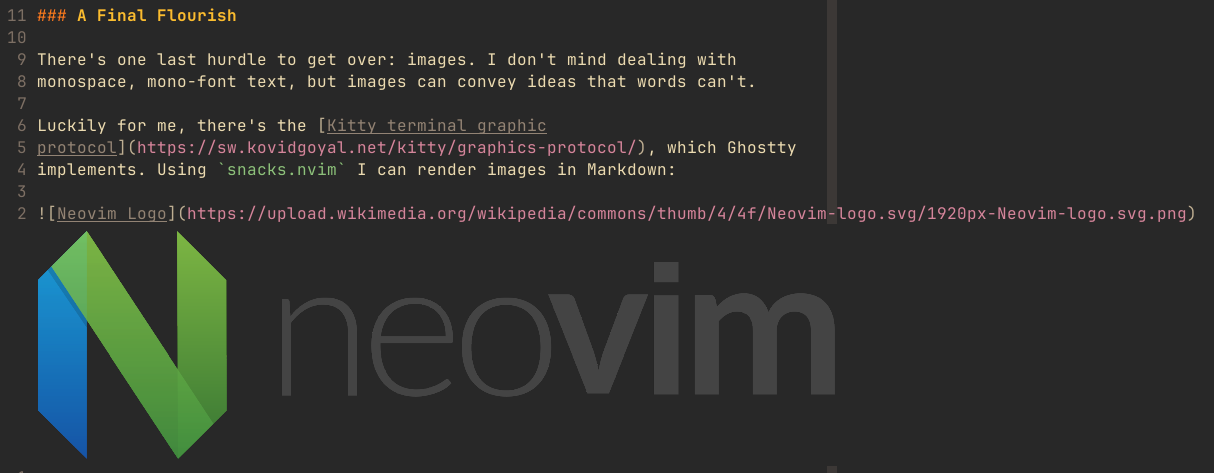
There’s one last hurdle to get over: images. I don’t mind dealing with monospace, mono-font text, but images can convey ideas that words can’t.
Luckily for me, there’s the Kitty terminal graphic protocol, which Ghostty implements. Using snacks.nvim I can render images in Markdown:
Everything Neovim-config related can be found on my here, on my GitHub!
What’s next?
Inevitably, I’ll find a way to make my life harder for a few days to end up with something that was incrementally better than before.
For you, the reader, don’t copy my dotfiles verbatim and expect it to work for you. If you like something, take it in small bits incrementally and make it your own. Or, stick with Obsidian, which I still use for Excalidraw if my colleagues ever need me to.
Life is simpler without Vim, but I like improving my workflow. If you’ve read this far, I hope you do too!